Registering Your Tests
If you have not already, you will need to create an account with us to register and upload tests.
Important Factors to Keep in Mind
- We can only accept paper-based tests. Unless you are one of the selected courses using the Computer-Based Testing Center (CBTF), we can only accept completely paper-based tests. Any test portions with sound or video components are not permitted. We are unable to administer tests on Canvas or any other platform. Read more about the CBTF.
- Students must schedule a time to take a test with us. Registering your test does not reserve seats for your students but rather grants students the ability to schedule the test within our existing availability. We recommend that students reserve their tests for the entire quarter to ensure they have a seat with us and allow for alternative arrangements to be made in a timely manner if needed. We are unable to administer tests on a walk-in basis, and last-minute scheduling requests are not guaranteed.
- Test durations cannot be changed. The test duration cannot be changed once submitted. Changes to the test submission are not automatically updated by RegisterBlast. If you are unsure about your test time, you will need to opt for a longer duration. It is more feasible for our team to manually update existing reservations to have less time than to provide additional time.
- Breaks cannot be provided between tests. Tests must be taken in one sitting. If your test needs to be taken in parts with different instructions, you will need to create separate submissions for these tests. Should you wish to submit your test in parts, the TTC cannot guarantee student reservations for both test submissions as seats are reserved on a first-come-first-serve basis. Students with an accommodation for bathroom breaks are permitted and can be utilized as required by the student.
- Test Cancellation/Late Policy. Students should arrive 15 minutes before their start time to provide ample time to store personal belongings and account for check-in procedures and questions. Any late arrivals will only be given until the originally scheduled end time. Students who are more than 15 minutes late for the test will have their test session canceled. Rescheduling can be offered but is not guaranteed.
How to Register a Test
To be completed by the end of Week 2 or no later than 5 days before the test date. View the steps below for detailed information on how to register your test.
It is important to note that the test submission can only be accessed by the Triton Testing Center (TTC) staff. You will need to provide your students with your general test information.
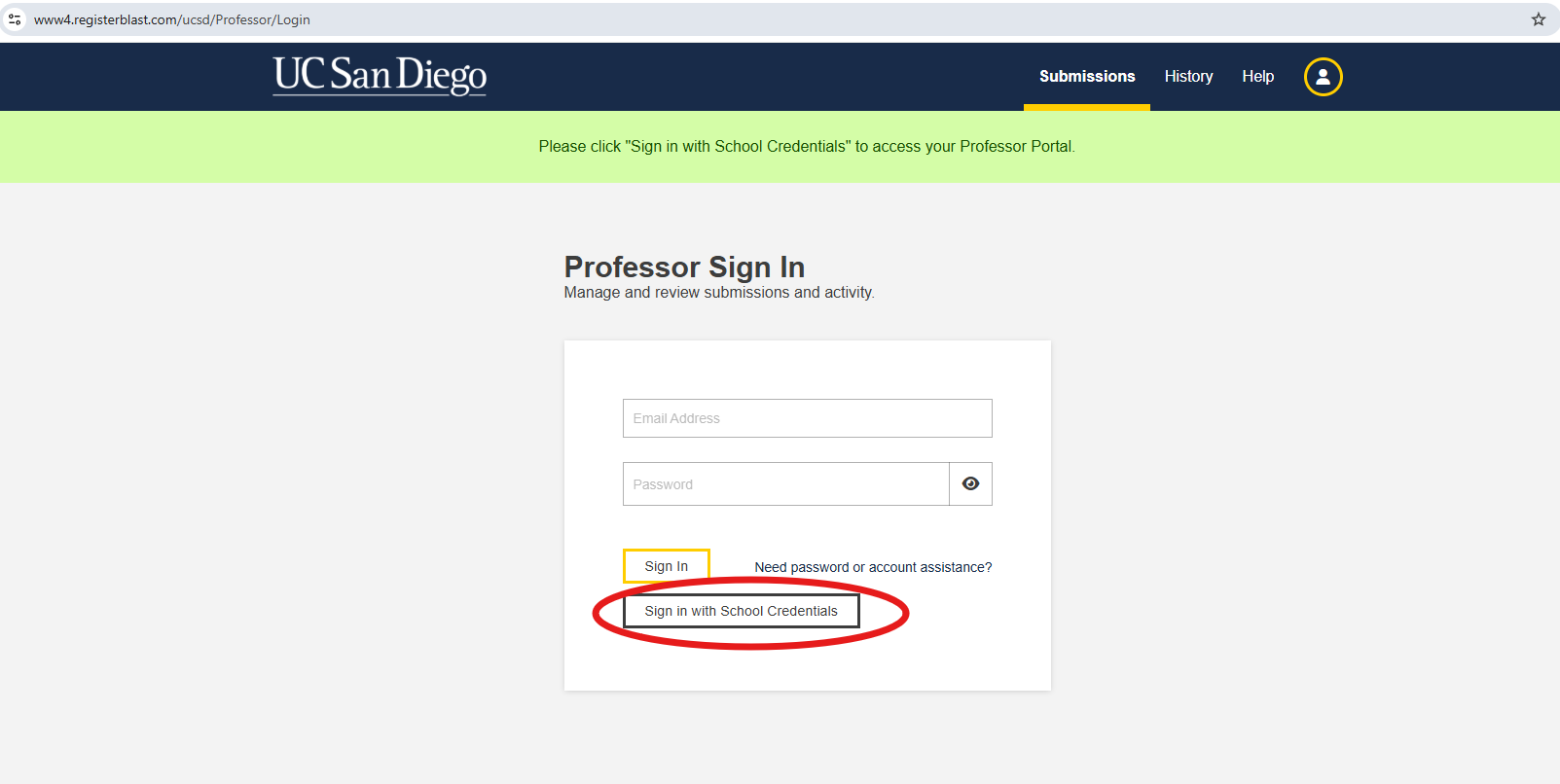
1. Log into RegisterBlast.
To register a test, visit RegisterBlast. Once you are on RegisterBlast, select the "sign in with School Credentials" button. After selecting this, you will be prompted to the Active Directory login. Use your UCSD credentials to sign in.

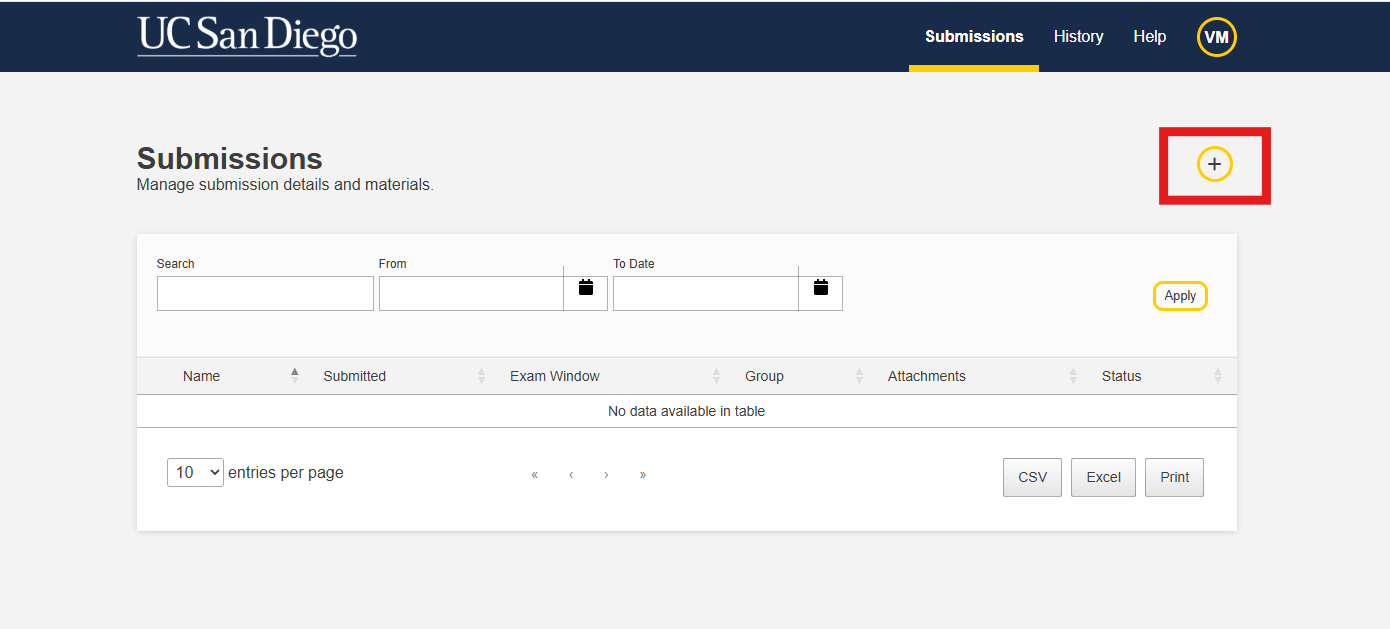
2. Select the plus icon to create a submission.
After logging into your RegisterBlast account, you will be directed to the home page of the Professor Portal. In here, you will be able to view a list of all of your test submissions once they are created.
You can generate a test submission by selecting the plus sign under the Submissions tab.
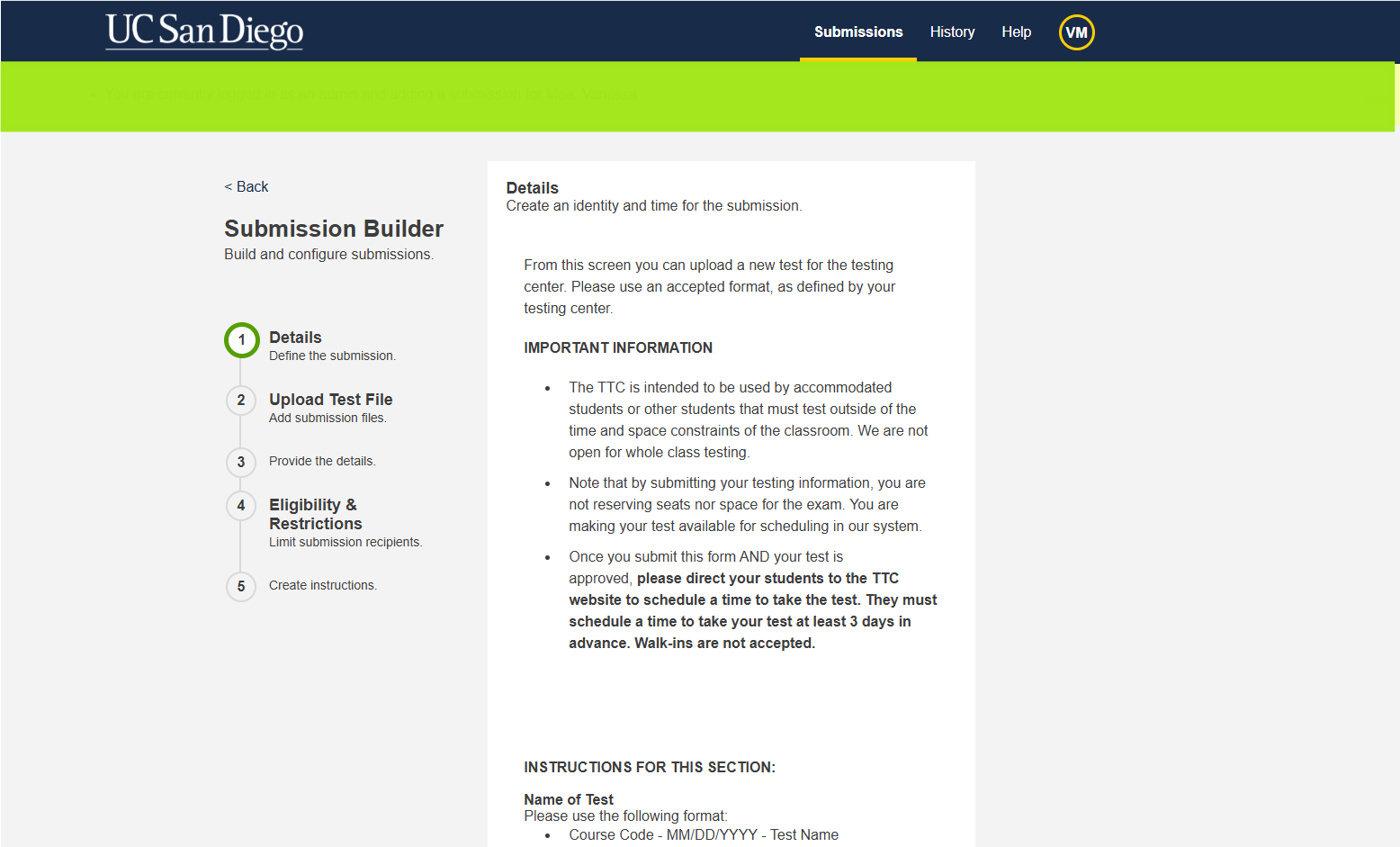
After selecting the plus sign, the submission start page should look like this. If you do not see this page, you may be logged in as a student. Please contact us at tritontesting@ucsd.edu to correct this issue.
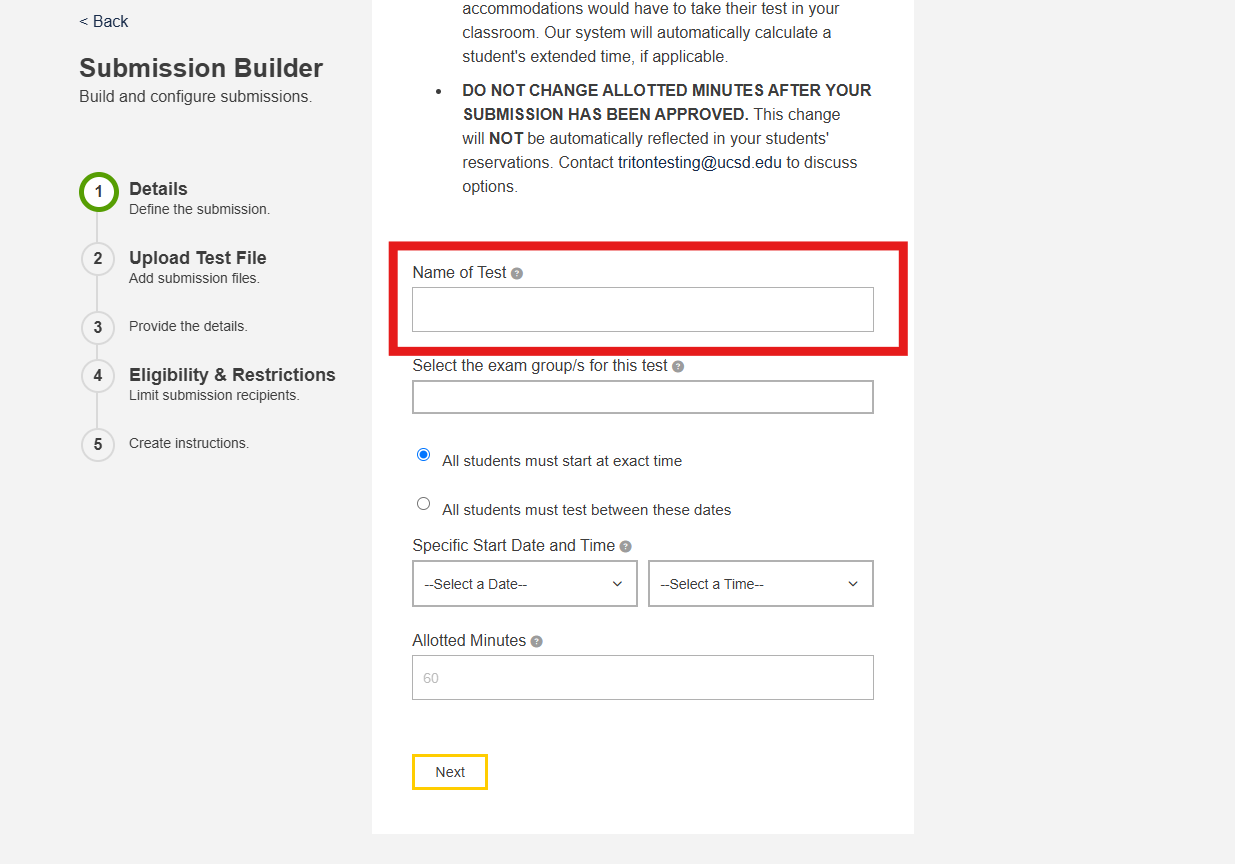
3. Name your test.
First, you will need to name your test using the following format: Course Code - MM/DD/YYYY - Test Name (i.e. MATH 103 - 07/21/2022 – Midterm).
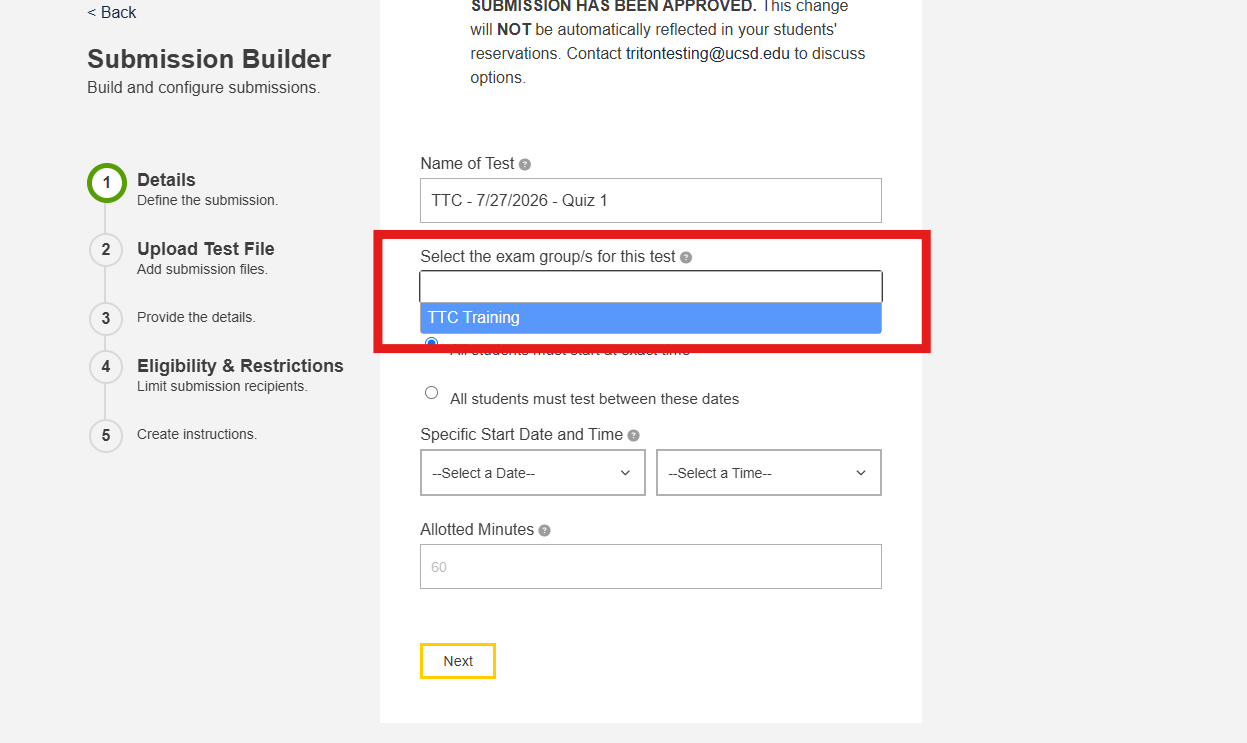
4. Select the Exam Group.
Next, you will select the exam group of the test (i.e. BICD, BILD, BIPN).
5. Input your desired testing window.
Dates:
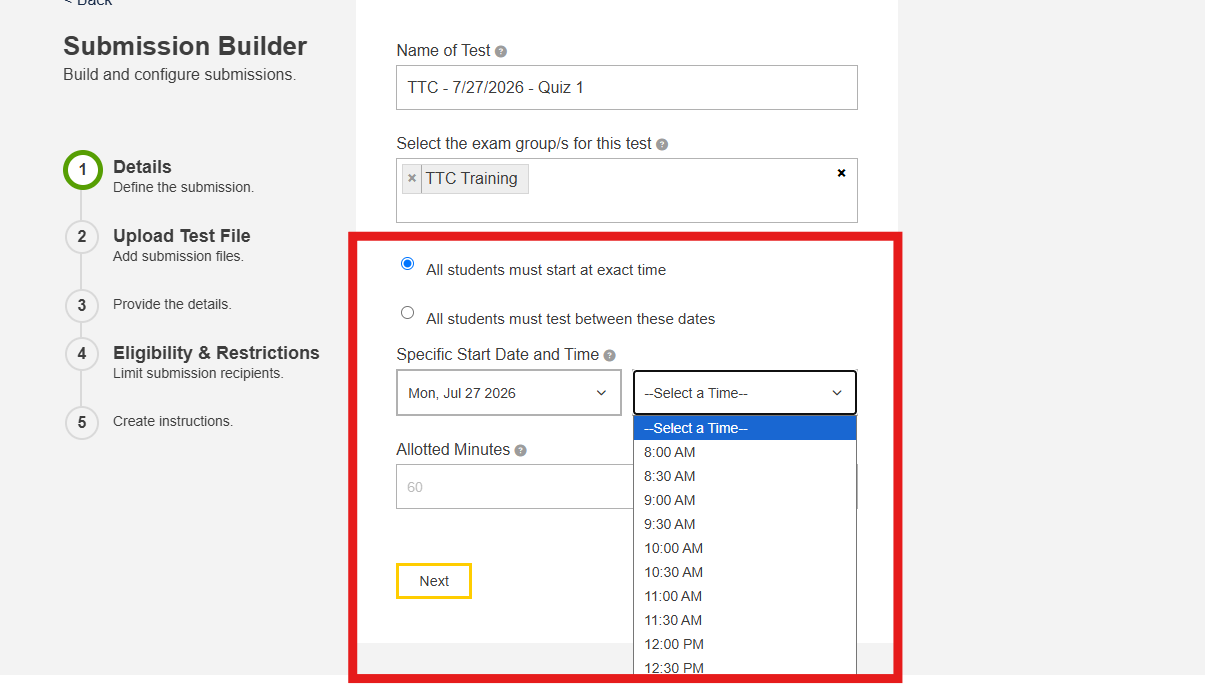
After this, you will select the testing window. If you would like for your students to take the test in conjunction with the in-class test, you can choose the “All students must start at exact time” option and enter the specific start time and date.
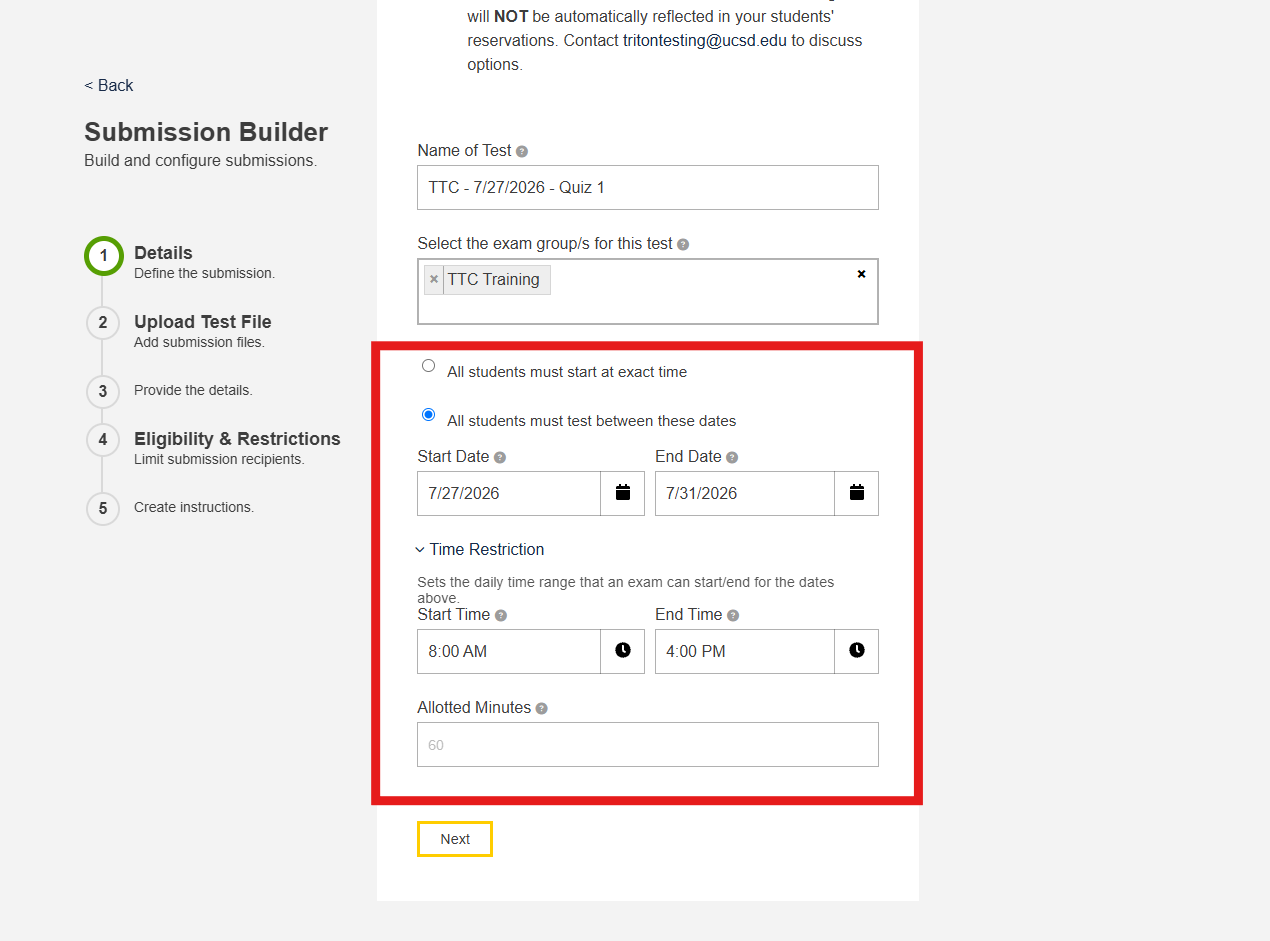
If you would like for your students to take the test within a certain window, you may choose the “All students must test between these dates” option and enter the desired testing dates.
**Please be advised that make-up tests must be taken after the in-class test has been administered. Students with accommodations will be given a “first pass” window to schedule their final exam seats. This window will extend through the end of Week 9. Unaccommodated students who need to schedule a make-up exam during final exam week may book any remaining seat beginning the Monday of Week 10. Any student, accommodated or otherwise, can also schedule make-up exams during the week after finals week.**

Times:
If you would like testing to start at a certain time on the first day of the testing window or end by a certain time on the last day of the testing window, you may enter the desired time into the respective field.
If the start and end time are left blank, RegisterBlast will default to our hours of operation. More information about our hours of operation.
Please note that the start time and end time restrictions apply to each day individually. For example, if you select a window from 09/01/25 to 09/03/25 with a start time of 8 AM and end time of 2 PM, students would be restricted to testing between 8 AM and 2 PM on 09/01/25, 09/02/25 and 09/03/25.
It is important to keep in mind that the start time must work within the students' accommodations and our hours of operation. For instance, if your test is 50 minutes and a student has 1.5x extended time, then the latest a student may start the test is at 6:30 pm (appointments are every 30 minutes.)
LATE POLICY: Students should arrive 15 minutes before their start time to provide ample time to store personal belongings and account for check-in procedures and questions. Any late arrivals will only be given until the originally scheduled end time. Students who are more than 15 minutes late to the test will have their test session canceled. Rescheduling can be offered but is not guaranteed.
6. Enter your test duration.
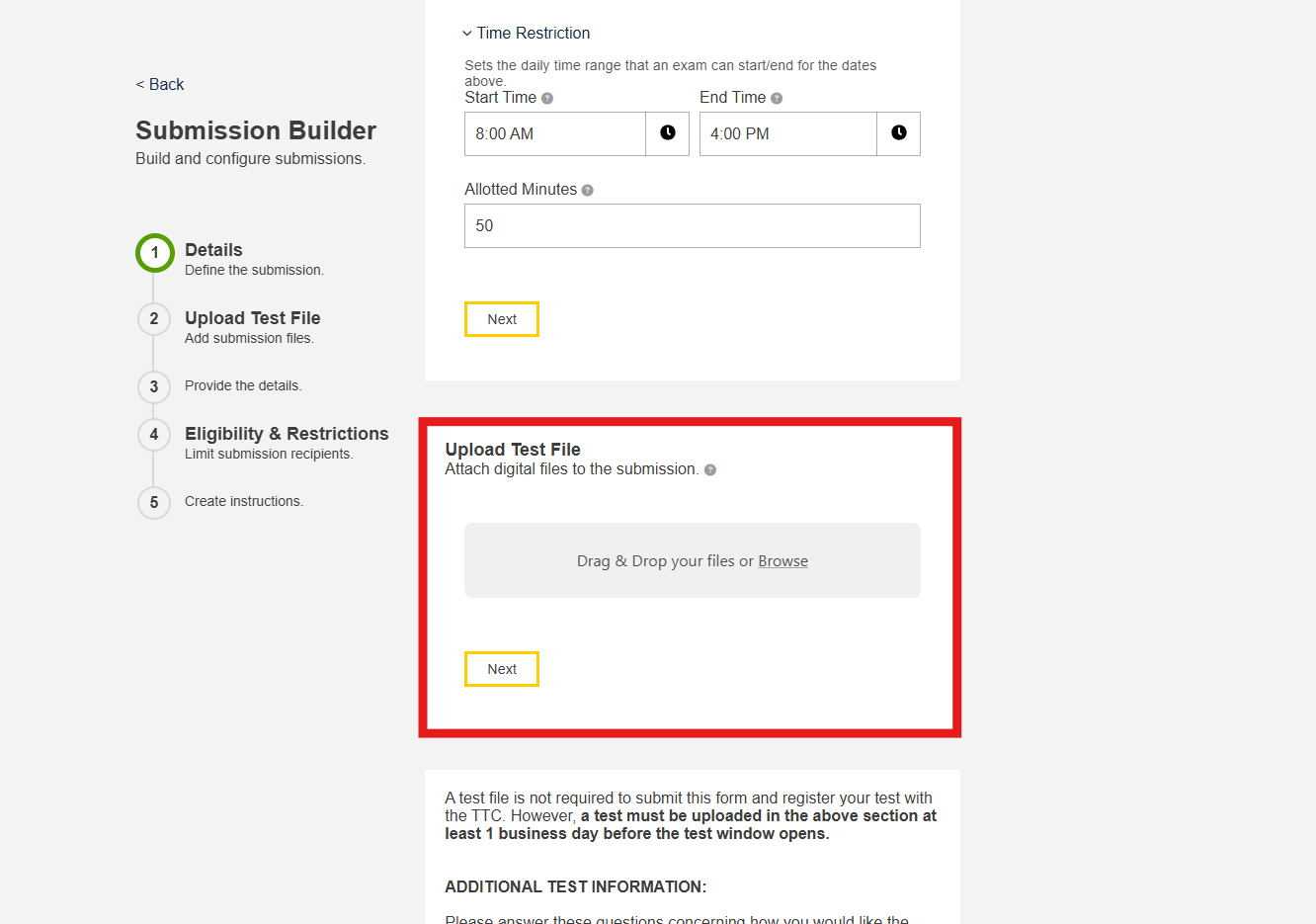
Following this, you must enter the allotted minutes for the test. The duration entered must be the in-class duration for the test as extended time is automatically added when a student schedules the test based on their individual accommodations.
REMINDER: The test duration cannot be changed once submitted. Changes to the test submission are not automatically updated by RegisterBlast. If you are unsure about your test time, you will need to opt for a longer duration. It is more feasible for our team to manually update existing reservations to have less time than to provide additional time.

7. Upload your test file.
While the test materials can be uploaded during initial test registration, it is not required. If you would like to upload the files at a later date, you may omit this section and move forward. However, the test must be uploaded one day in advance of the testing window.
8. List the permitted testing aids.
For testing aids, please provide as many details as possible (i.e. handwritten one-sided note sheet, open book, no aids permitted etc.) to ensure a smooth check-in process for your students. Should your aids change, please update your submission as soon as possible. Failure to update the submission may affect test reservations, and additional time will not be provided.

9. Establish a grace period.
You may elect to give a student:
- A 15-minute grace period to begin their test.
- Or the option to reschedule the test if they arrive more than 15 minutes late.
If you do not wish to have a grace period, we will not administer the test to any late arrivals. However, you must notify your students that a grace period will not be given.
Students who arrive late will only have until their originally scheduled end time. Students who are more than 15 minutes late for their test will have their test session canceled, no exceptions.
Rescheduling is possible but is subject to your approval and our seat availability. For this reason, please encourage your students to show up 15 minutes before their start time to have ample time to store personal belongings, ask any questions about their reservation, and check-in.

10. Provide your contact information.
If you will be answering clarification or content questions on the test, you will need to provide your preferred method of contact. Should a student have a question on the test, our career staff will reach out to you as soon as possible.
If you are not answering questions, you may move onto the next step. You may leave your contact information should we need to immediately reach you (e.g. test file is not uploaded).

11. Checkmark the agreement.
Checkmark the agreement to upload the test file at least one business day in advance. Failure to upload the test within one business day can result in test cancellations or reschedules. The agreement must be selected in order to complete your submission.
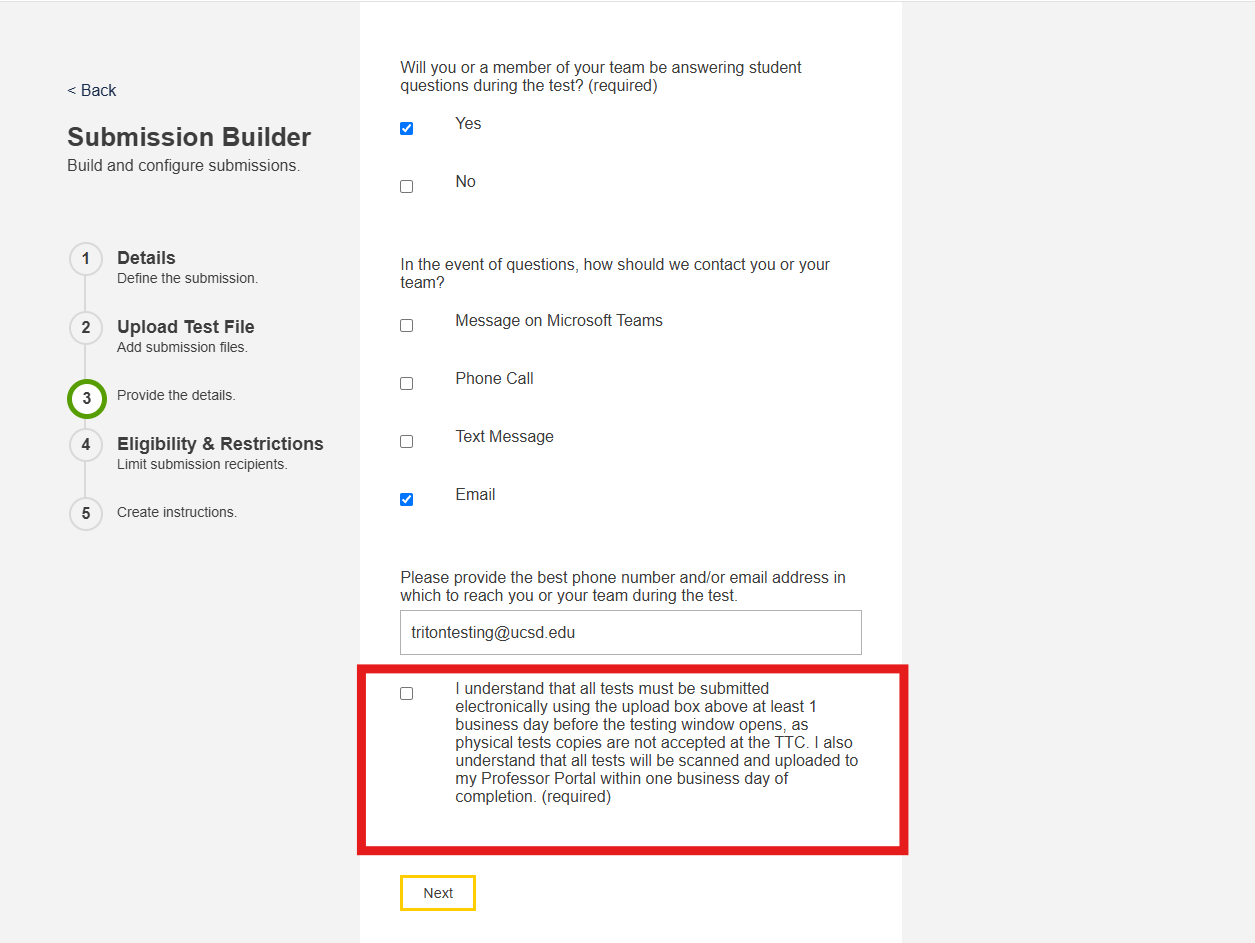
12. Enter the list of students eligible to take your test.
Finally, you may enter the list of students eligible to take your test. The students added to the restrictions section are the only students who will be able to schedule your test.
If this section is left blank, any student with a RegisterBlast account can sign up for your test. Please note that we are only open for accommodated and makeup testing at this time. Any other student registrations will be cancelled.
TIP: It is best to type out the student's email and choose the student's name from the prompted list of names/emails instead of copying and pasting the student's email.
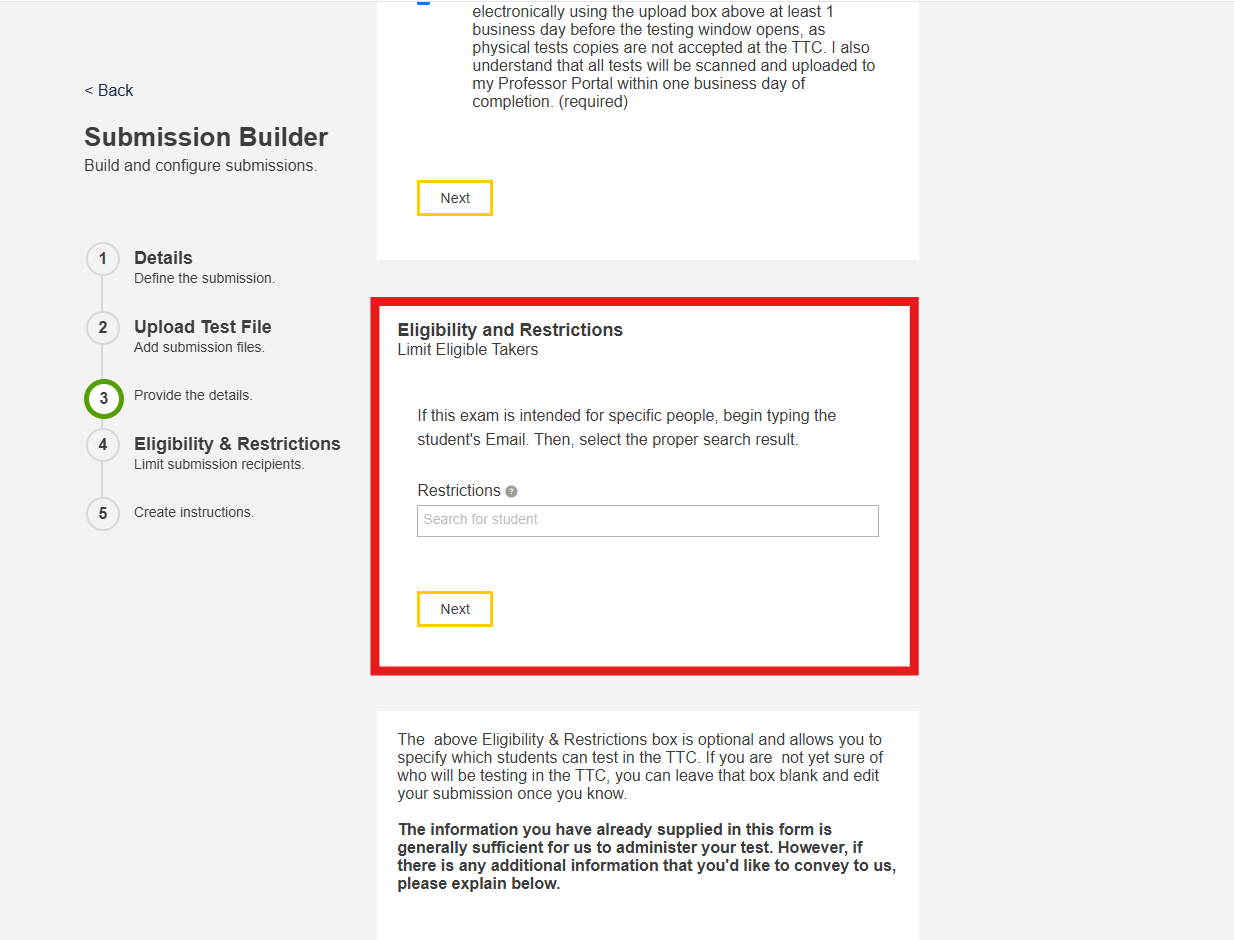
13. Notate additional instructions.
If there are instructions that you wish to add or clarify, please include them in the final text box.
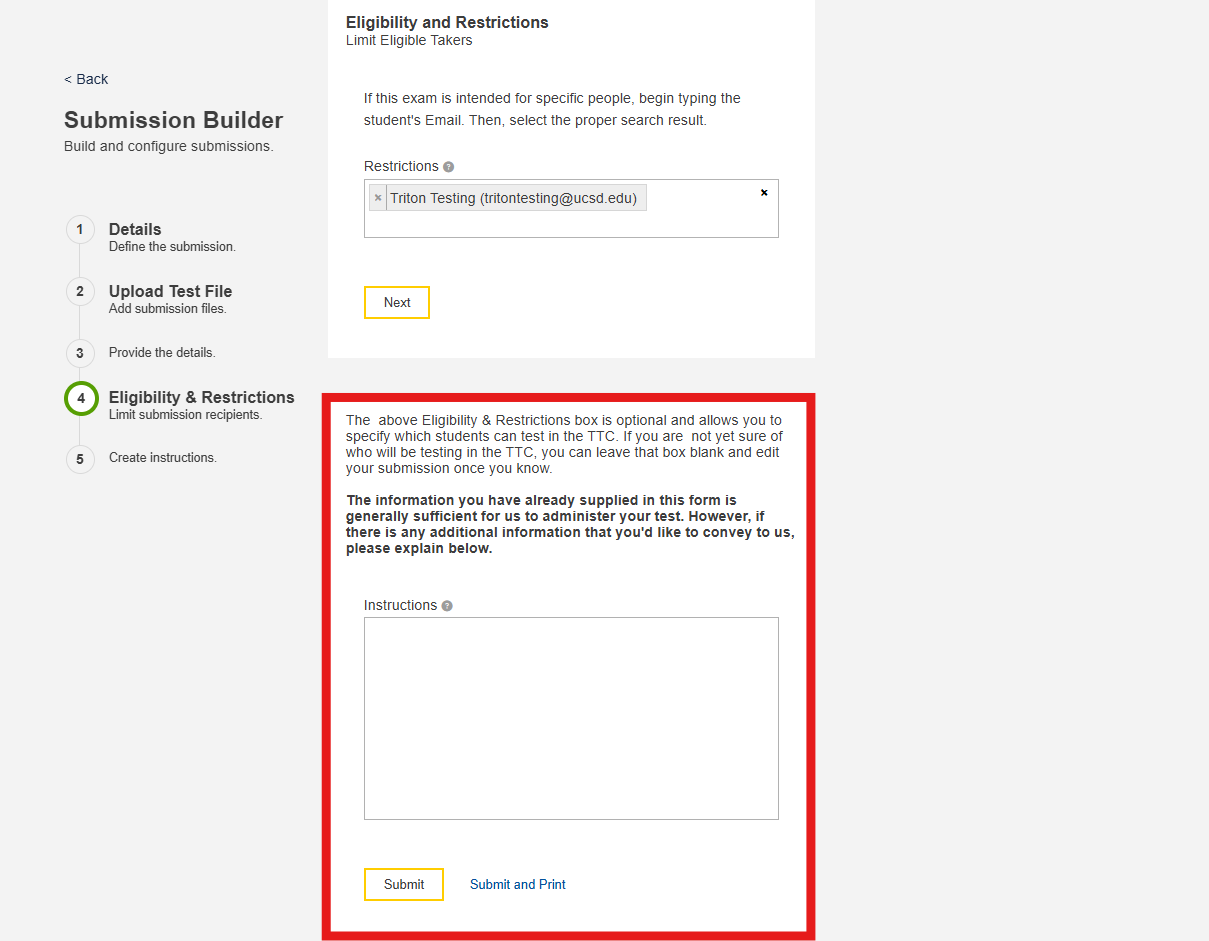
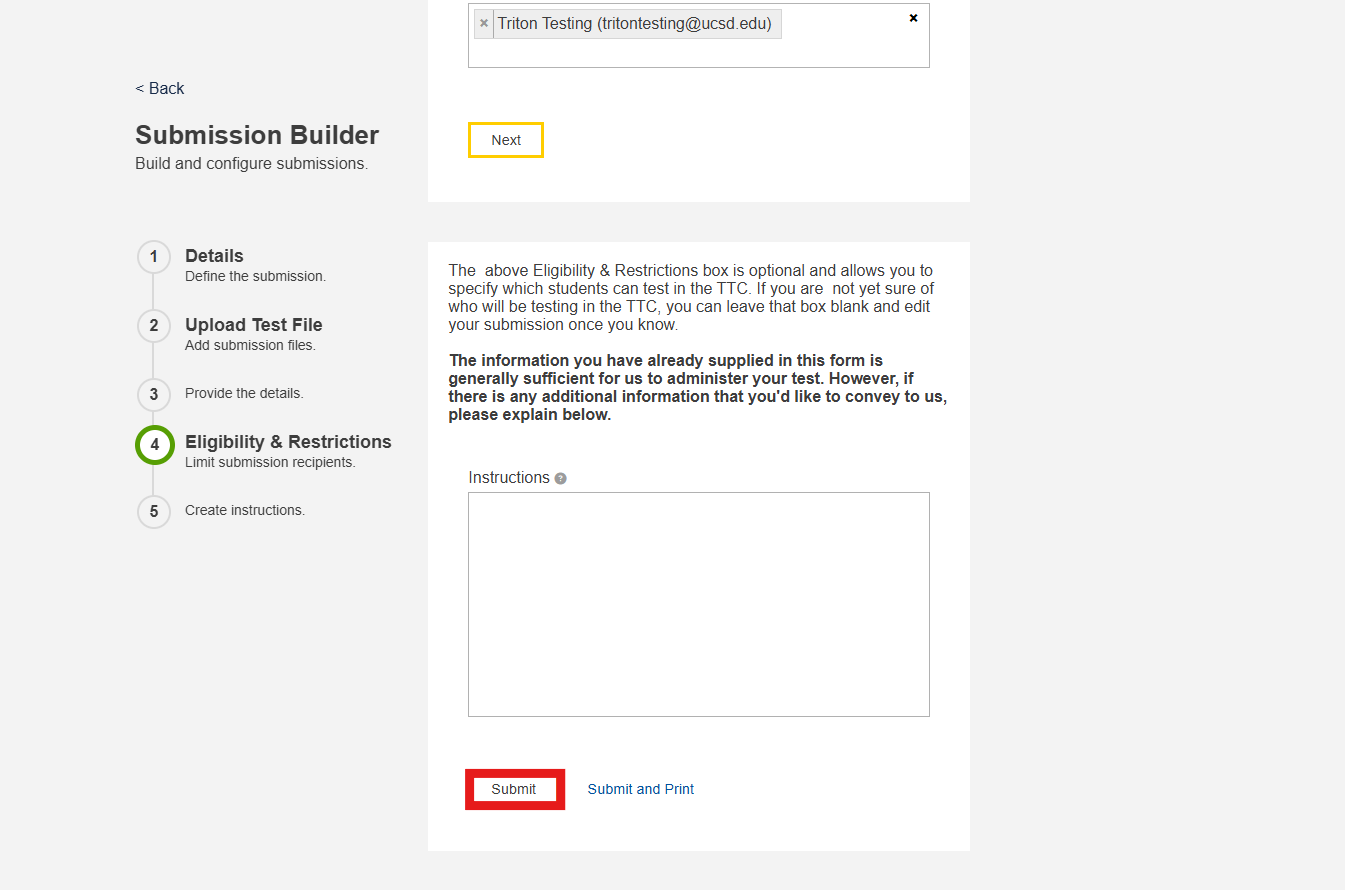
14. Submit your test.
Once you have entered and verified your test information, you may now submit your test by selecting "submit" at the bottom of the page.
Please allow 1 business day for TTC staff to review and approve your test submission. It is important to note that approval of your test submission does not automatically reserve your student's seat. Each student will need to schedule a time to take the test using their RegisterBlast student account. Learn more about student scheduling procedures.
Video Tutorial
View our video tutorial for a visual walk-through on how to register your test.