Uploading Your Test File
To be completed no later than one business day before the test date.
1. Log into RegisterBlast
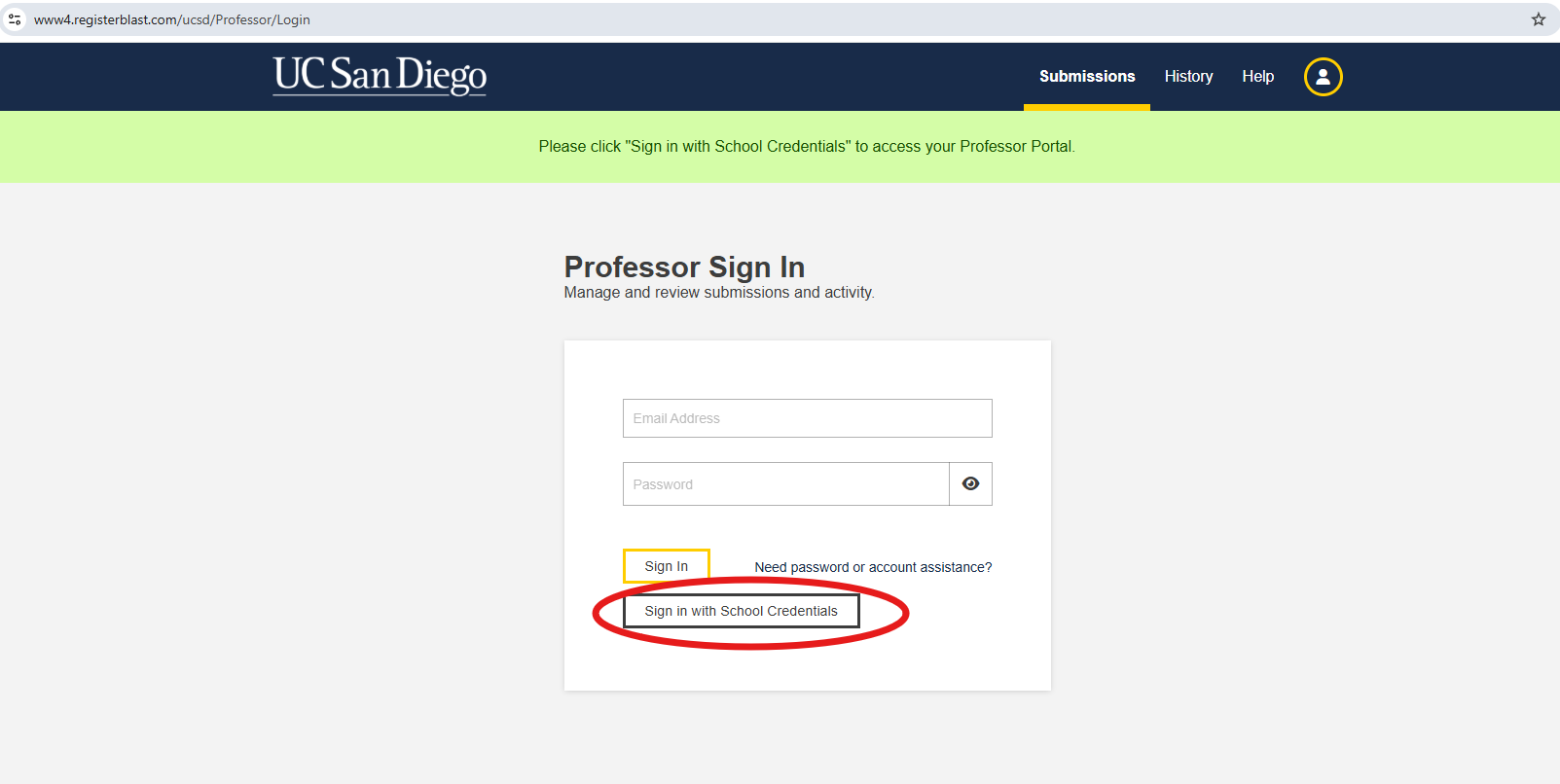
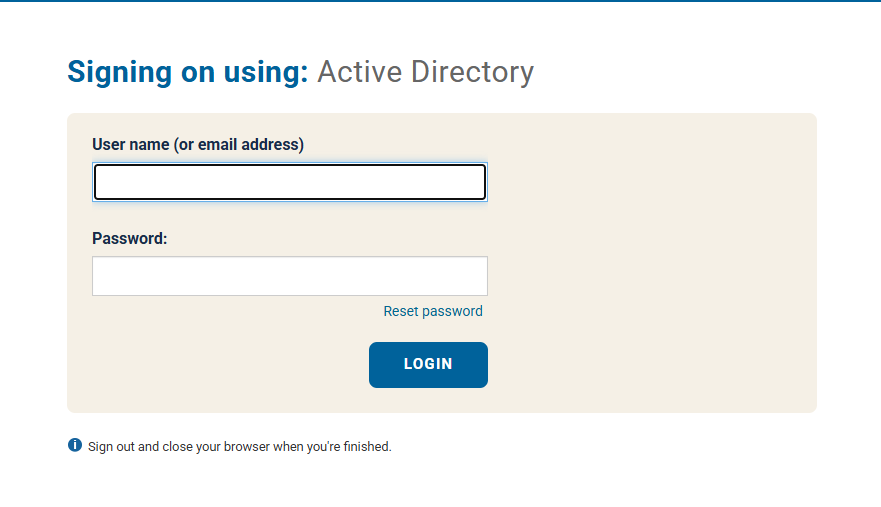
To edit your submission, visit RegisterBlast. Once you are on RegisterBlast, select the "sign in with School Credentials" button. After selecting this, you will be prompted to the Active Directory login. Use your UCSD credentials to sign in.
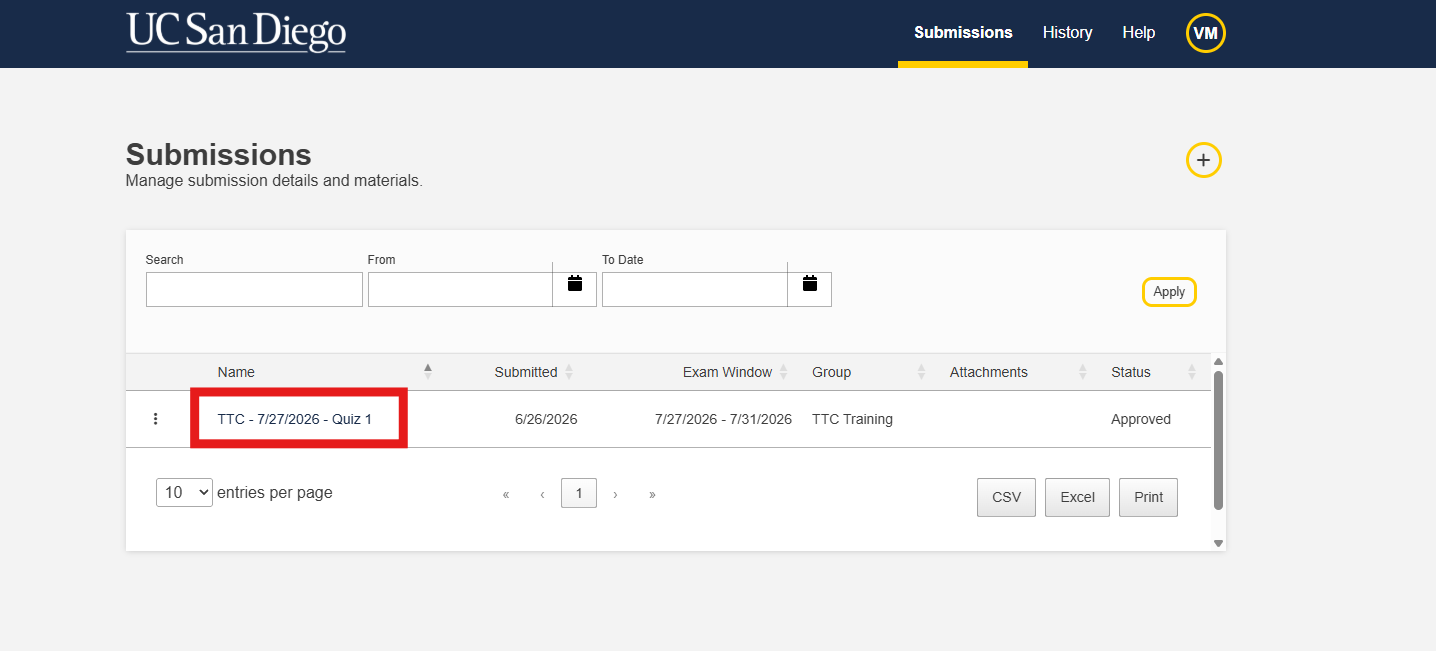
2. Select the desired submission.
Select the submission you want to upload the test to.
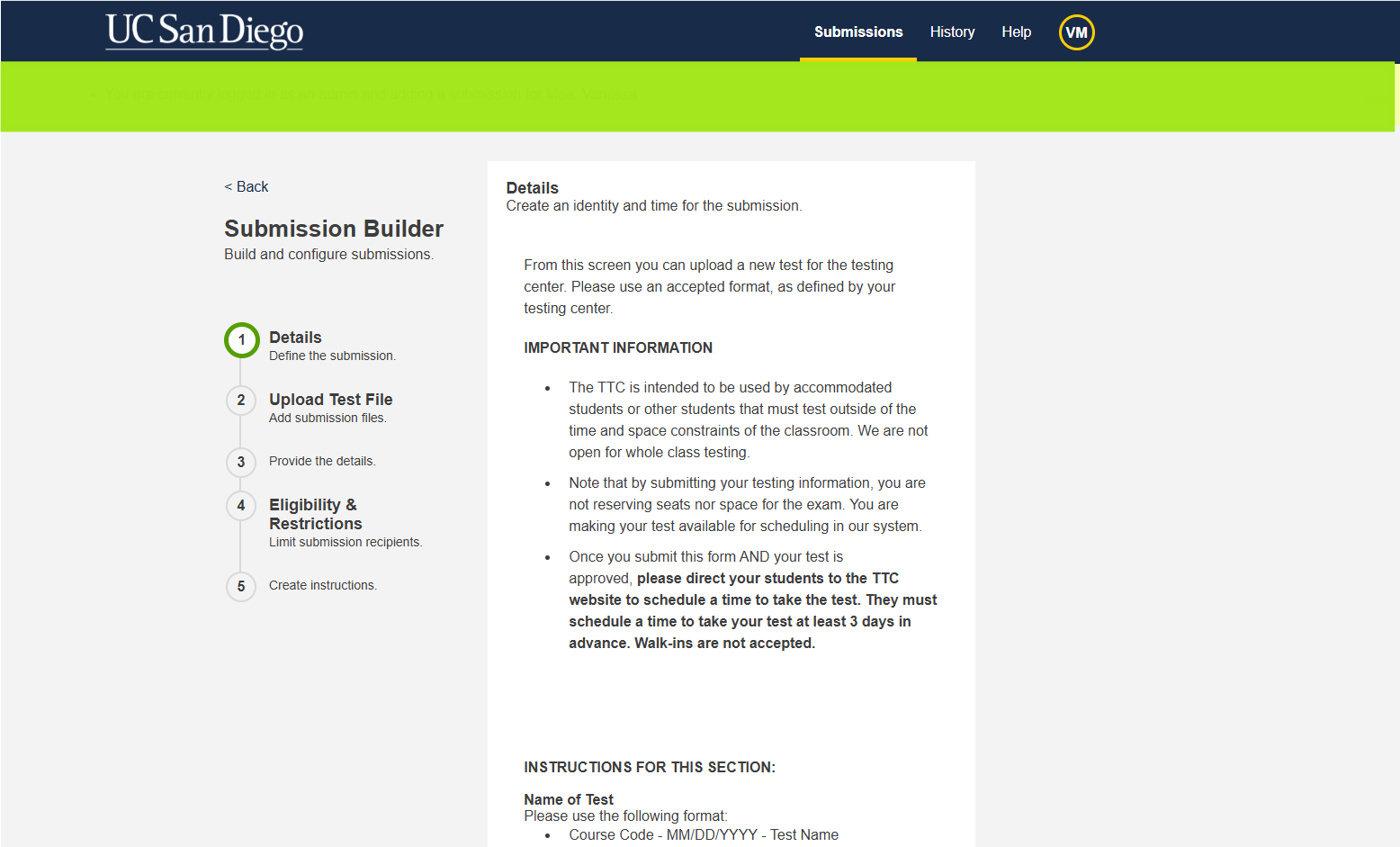
3. Navigate down the page to “Upload Test File.”
You will be directed to the submission builder. This should look familiar as this is where you entered your test information previously.
Now, navigate down the page to “Upload Test File.”
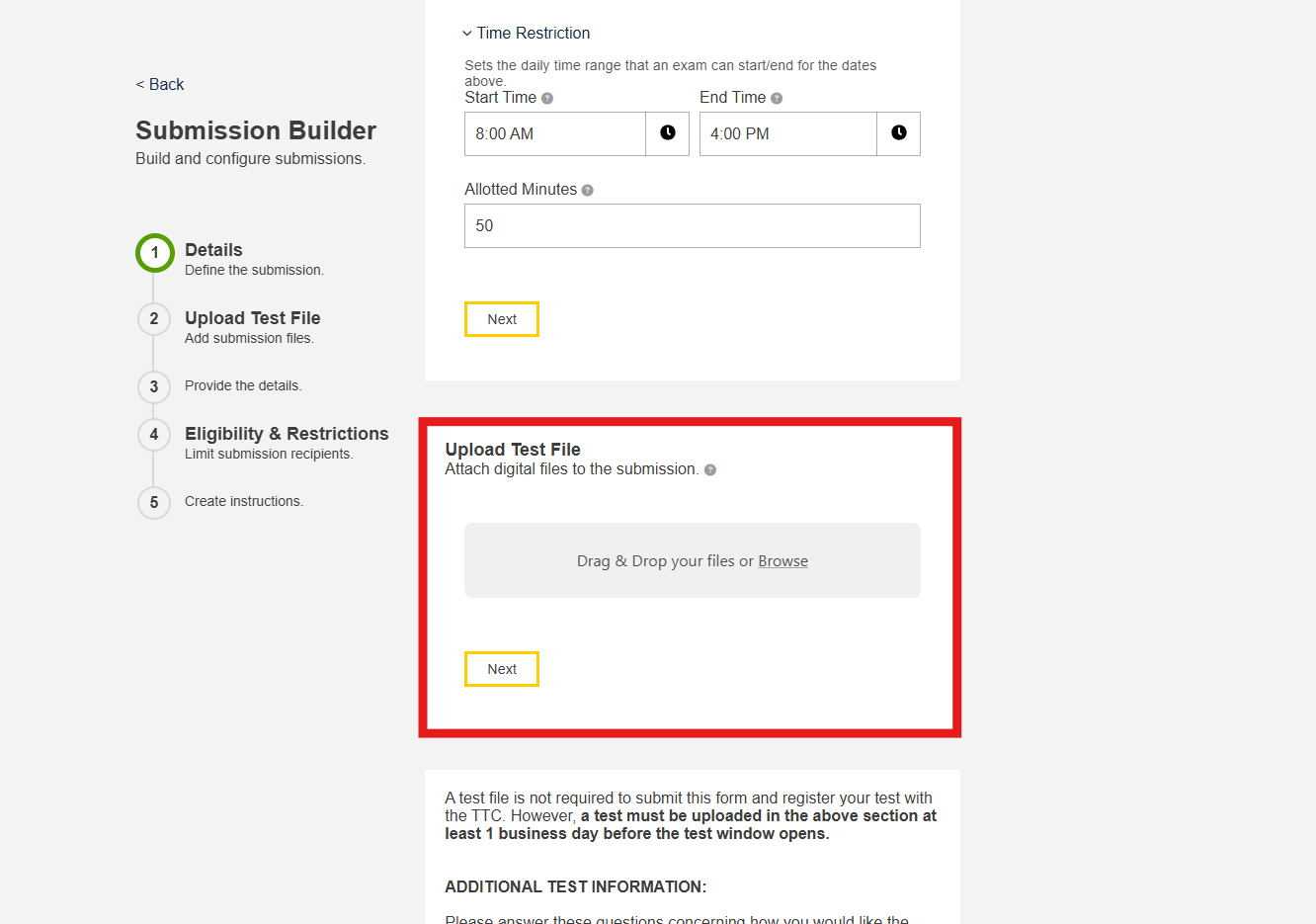
4. Upload your test file(s).
Locate the file you would like to upload. You can upload your test in two ways.
- Drag the file(s) into the gray box.
- Or select “Browse” in the gray box. This will prompt a window to pop up on your screen. Select the file(s) you want to upload.
IMPORTANT: You will need to wait until the file(s) are completely uploaded before finalizing your submission. Once the file is highlighted in green, this means your document was successfully uploaded. You must complete this step for us to receive your file.
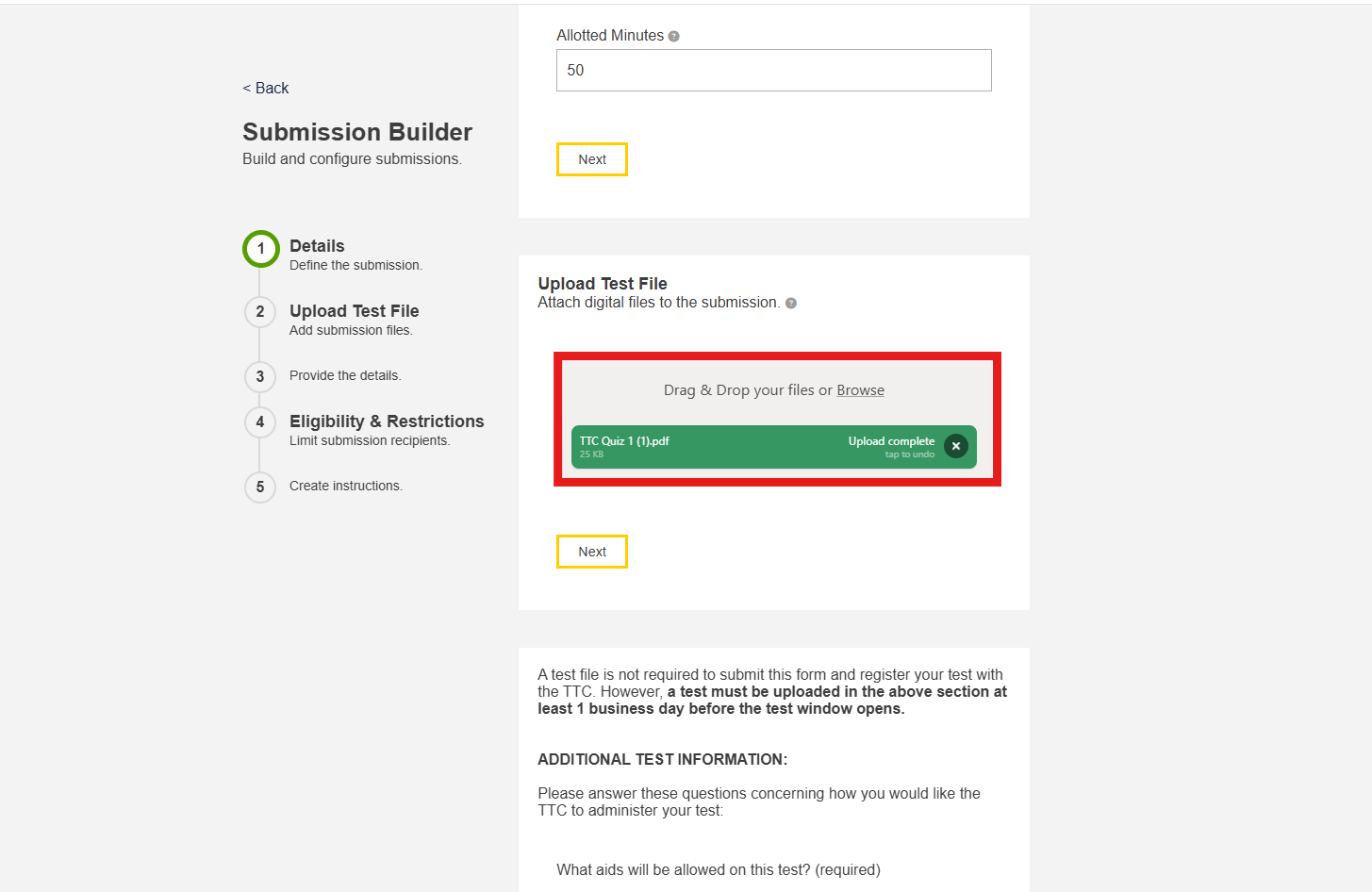
5. Finish your submission.
Navigate to the bottom of the page and select “submit” to finish your submission.
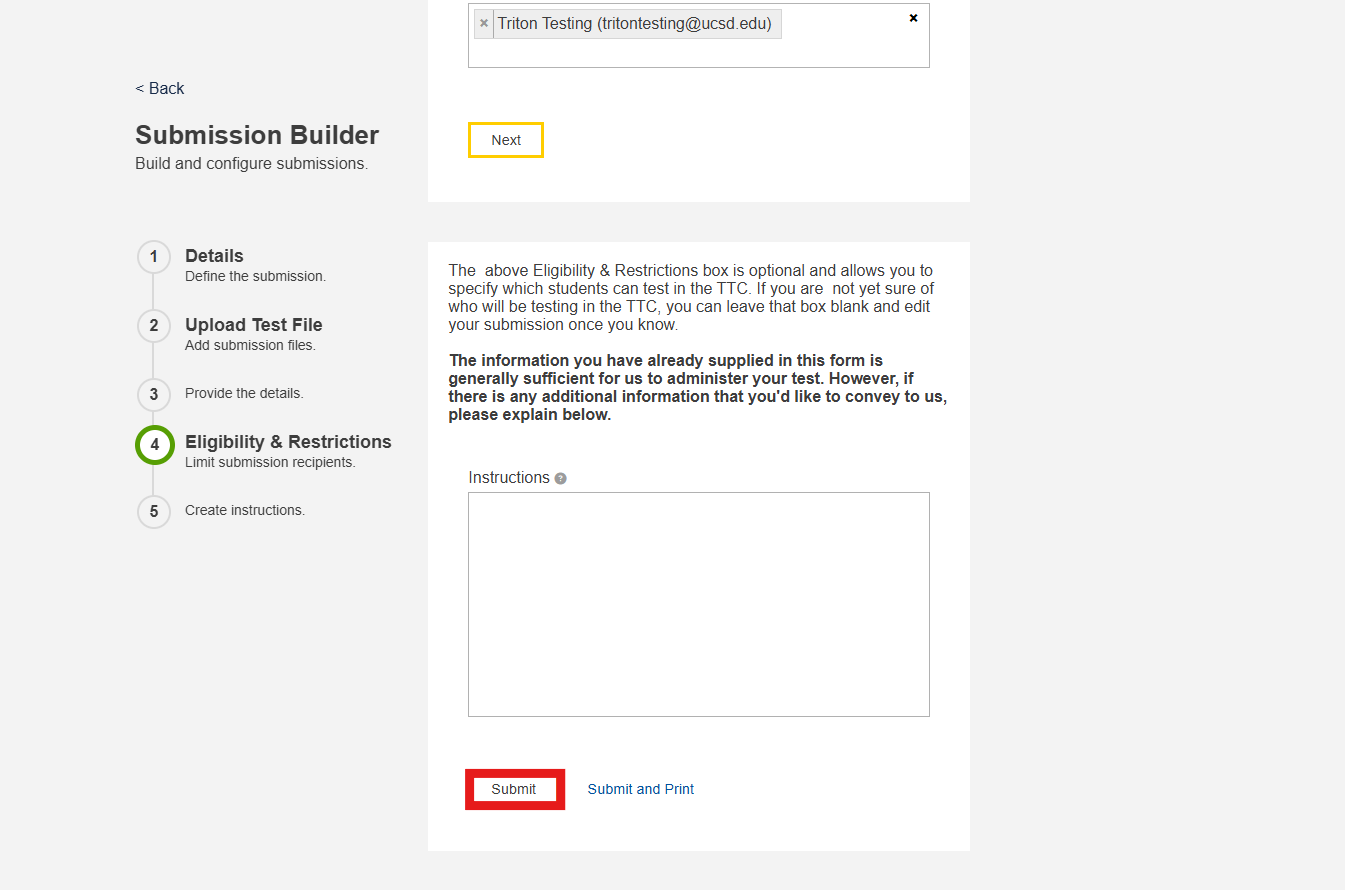
What happens after I have uploaded my test file?
Your test file will remain in our secure Register Blast system until the day before your testing window is set to open. At that time, our career staff will print copies of the test for every student scheduled to take the test in the TTC. Printed test copies will be put into individual envelopes and remain securely locked away in our office until your student’s testing time.
What if I need to update my test file?
In order to serve hundreds of students each day, our team prints and arranges your test one day in advance of your test being administered. You are welcome to make any changes to your test file before this date. If you have any last-minute additions, clarifications, or changes to the test file, you will need to email us at tritontesting@ucsd.edu as soon as possible. We will do our best to provide them to your students promptly.
To avoid any delays or interruptions to your student's test session, we recommend having all test materials correctly uploaded. It is important to note that we are unable to provide additional time due to any errors in uploading the test.